

Apple Music has tons of icons. Wait. What do they all do?
Contents
Last week, I had to explain the “E” symbol to my dad. He thought it meant “explicit” but wasn’t sure. That got me thinking—most people ignore half these buttons.
So here’s a plain walkthrough.
Quick Lookup
- Star next to a song? That track is popular. Think of it as a crowd-favorite badge.
- “E” means explicit. Strong language, adult themes. You’ve been warned.
- Infinity sign? Autoplay. Turn it on, and Apple Music keeps playing similar tracks after your playlist ends.
Your home screen
- Profile picture: tap it. Account settings live there. Subscriptions, notifications, Apple ID balance—all that.
- Right chevron (that arrow): go deeper into a section. More playlists, more options.
- Mini player arrows: one right arrow and one double right arrow. They handle skipping and pausing when the player’s shrunk down.

Now the Music player screen in Apple Music
- Horizontal line at the top? Drag it down. The player collapses into that mini version.
- Star: your favorite button. Tap it, song goes into your Favorites.
- Circle with three dots: the More menu. Download, SharePlay, add to playlist, dislike, share lyrics—everything’s in there.
- Play, pause, previous, next. Previous goes to the start of the current track. Double-tap it and you’re on the last song. Next jumps forward.
- Speaker with a bar: volume control. Drag the slider.
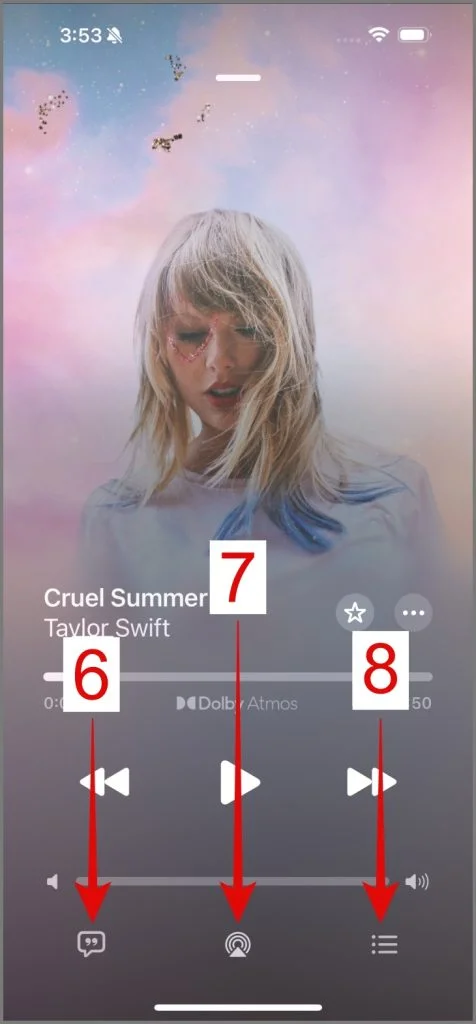
- Chat bubble with quotation marks: lyrics. Real-time, scrolling.
- Triangle with signal waves: AirPlay audio. Send the music to Apple TV, HomePod, or any AirPlay speaker.
- Three horizontal lines with dots: queue. See what’s coming up, reorder things.

Playlists have their own set Icons in Apple Music
- Person plus a plus sign: Collaborate. Invite people. They can add songs and rearrange.
- Circle with a down arrow: Download the whole playlist. Offline listening later.
- Audio waveform: shows up on the album art of whatever’s playing right now.
- “E” again: explicit. Same as before.
- Criss-cross arrows: Shuffle. Mixes up the order.
- Two arrows circling clockwise: Repeat. Tap once—entire playlist loops. Tap again—a “1” appears. That means the current song repeats forever until you turn it off.
- Infinity sign: Autoplay. Same as earlier.
- Three parallel lines: grab and drag to reorder songs yourself.
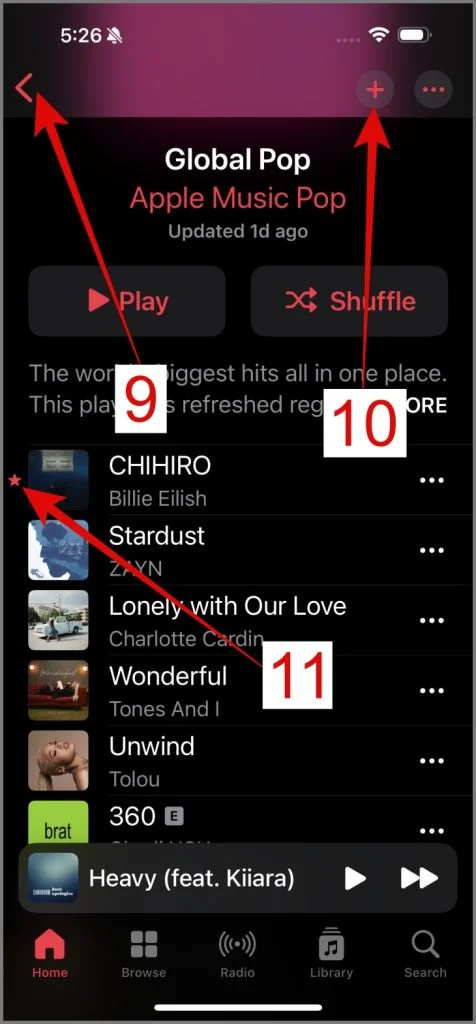
- Circle with a left arrow: back to the previous screen.
- Circle with a plus sign: add this playlist to your library.
- Star next to a song: you’ve favorited it. Nice.

Radio and podcasts
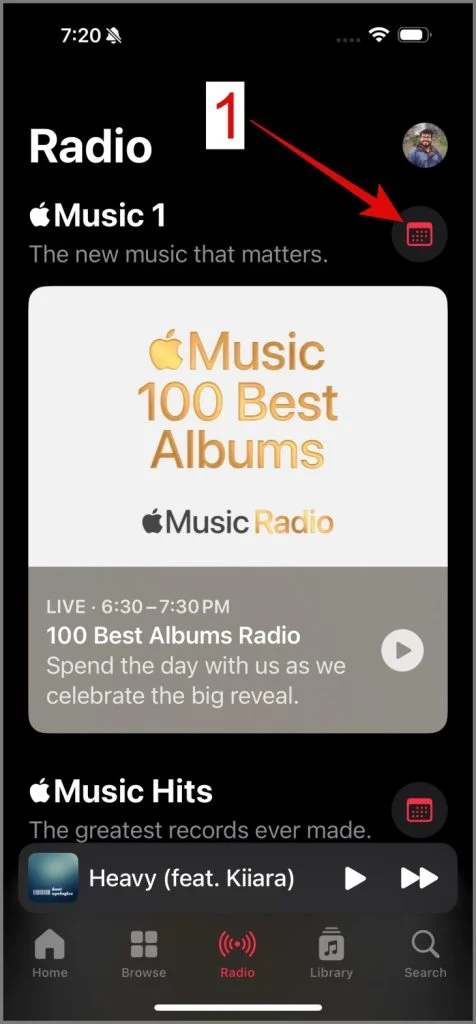
- Calendar icon: schedule. Check when shows air.
- Circular arrows with a number: rewind 30 seconds or fast-forward 30 seconds. Jump around the episode.
- X: close full-screen video.
- Two rectangles with an arrow: Picture-in-Picture. Video floats in a small window while you use other apps. You can resize it too.
- Rectangle with a triangle: AirPlay video. Stream to Apple TV or other compatible screens.
- Speaker with sound waves: audio is on. Tap it—muted. Speaker with a line means silence.
Artist pages Icons in Apple Music
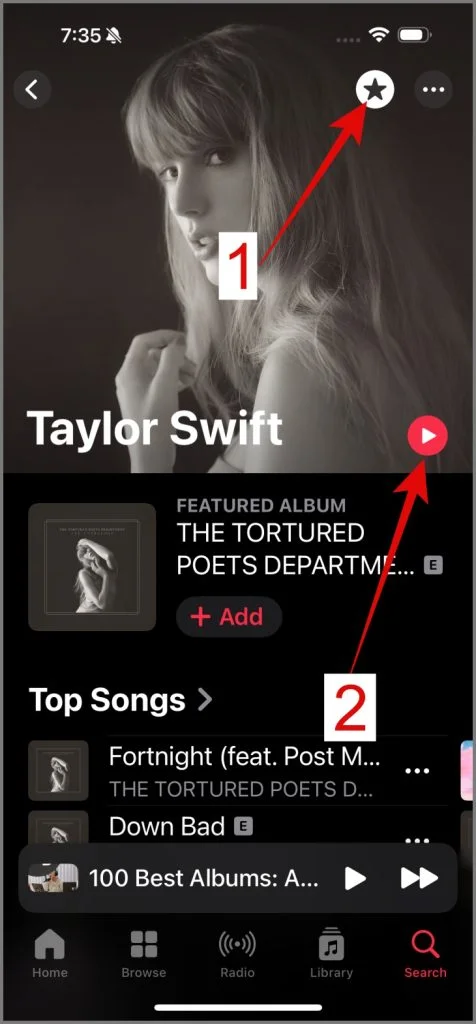
- Star: Subscribe. Get notified when they drop something new.
- Play button: obvious. Start listening.
Apple Music packs a lot in. Some icons are easy to guess. Others? Not so much. I’ve looked at this app so many times and still forgot what the weird double-arrow thing does. But now it’s all here.
Also, Spotify and YouTube have similar symbol guides if you’re curious. But that’s for another day.