



Understand WhatsApp icons and symbols to chat with more clarity and confidence.
Introduction:WhatsApp is awash with ticks, clocks, arrows, and status icons—but not everyone is familiar with their meanings. Whether it is message ticks or symbols that depict calls and statuses,...
Introduction:
WhatsApp is awash with ticks, clocks, arrows, and status icons—but not everyone is familiar with their meanings. Whether it is message ticks or symbols that depict calls and statuses, such small icons play an invisible role in dictating how you process and send messages on a day-to-day basis.
Table Of Content
- What Are WhatsApp Icons and Symbols?
- Common Icon Categories on WhatsApp
- WhatsApp Icons: Quick Guide
- Message Status Icons (Ticks & Clock)
- Status Icons
- Call Icons & Call Text
- Chat List, Group & Security Icons
- Simple Tips to Understand Icons
- Status (Stories) Icons and Their Meanings
- Tips to Quickly Identify WhatsApp Icons
- FAQ Section (Questions with Answers)
- Conclusion: Use WhatsApp with Confidence
This guide is for:
- New WhatsApp users who feel confused by the different ticks and status icons.
- Parents, professionals, and business users who need clarity on delivery, read receipts, and call statuses.
- Anyone wondering “What do these WhatsApp symbols mean?” after updates in 2024–2025.
What Are WhatsApp Icons and Symbols?
WhatsApp uses small icons to visually indicate message status, connectivity, calls, media sharing, and privacy. Understanding these symbols helps prevent misunderstandings—such as thinking someone ignored your message—and allows you to manage your privacy and security settings more effectively
Common Icon Categories on WhatsApp

Read also:Sri Lanka Women vs India Women match scorecards
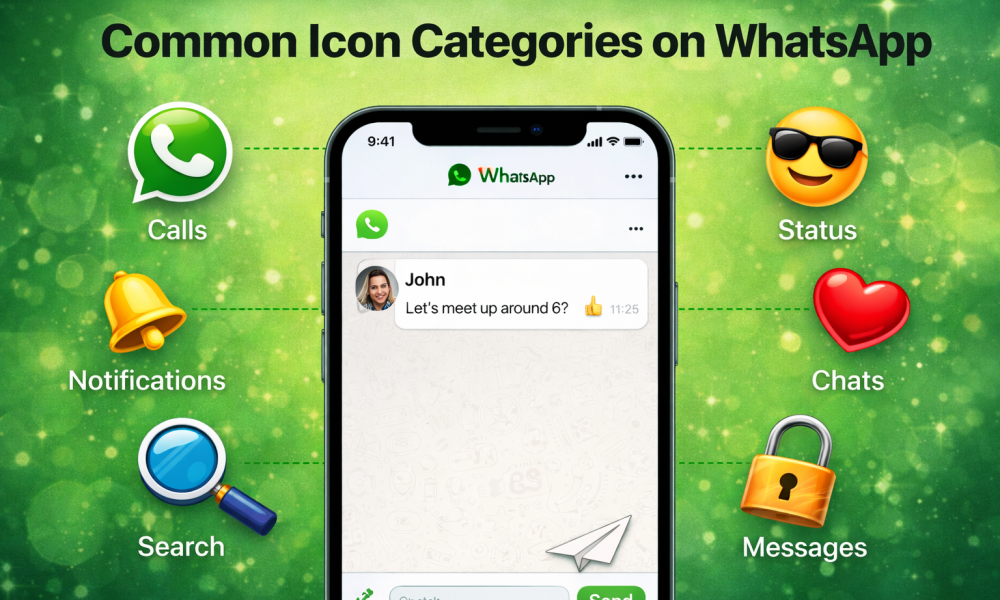
On WhatsApp, most symbols fit into a few big groups:
- Message status icons
These include the clock, single grey tick, double grey ticks, and double blue ticks that show the life of each message. - Status / Stories icons
Rings around profile photos and small symbols inside the Status screen show who has posted, what you’ve seen, and who viewed your own Status. - Call icons and labels
Audio and video call buttons, along with “Calling”, “Ringing”, “No answer”, and “In another call”, tell you what’s happening with your call. - Chat list and group icons
Mute, pinned chats, unread counters, and disappearing message clocks give you a quick overview of which chats need attention. - Privacy and security icons
Padlock icons and security banners show that your chats and calls are protected by end‑to‑end encryption.
WhatsApp Icons: Quick Guide
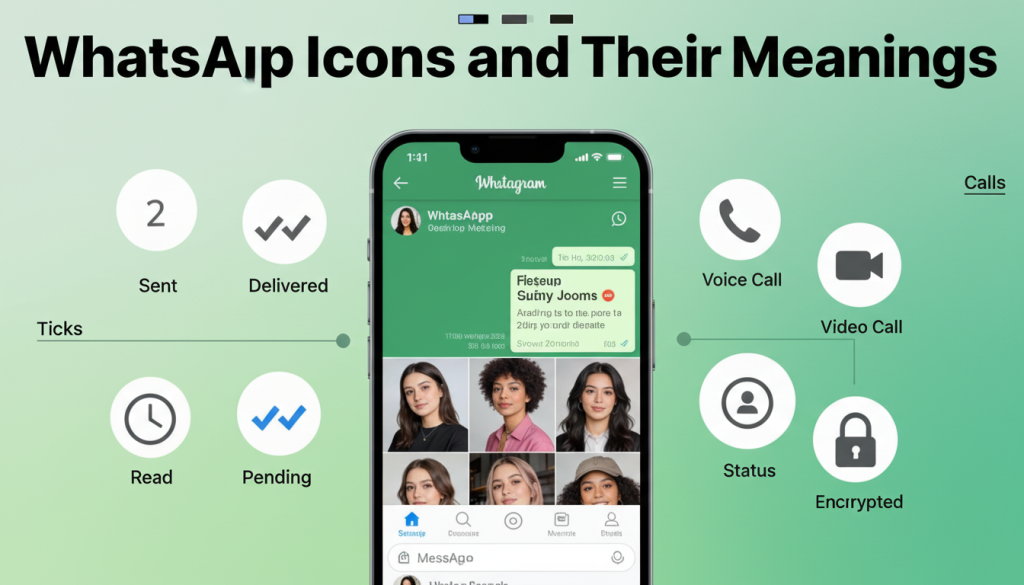
Message Status Icons (Ticks & Clock)
- ⏱ Clock – Message is still on your phone; internet is poor or off.
- ✅ Single grey tick – Sent to WhatsApp server, not yet delivered to the other person’s device.
- ✅✅ Double grey ticks – Delivered to their phone but not opened yet (or not marked as read).
- 🔵✅✅ Double blue ticks – Read/seen in chat, unless read receipts are turned off.
- ❗ Red exclamation – Message failed to send; tap to try again.
- 🚫 No tick – With no connection, you may briefly see no tick until the app can send.
- 🔒 Read receipts off – Ticks never turn blue in 1‑to‑1 chats, even if the person read the message.
- 👥 Group chats – Blue ticks appear only after everyone in the group has read; “Info” shows who saw it and when.
Status Icons
- 🟢 Colored ring around profile – New Status you haven’t seen.
- 🌗 Partially faded ring – Some Status updates seen, some not.
- 🔕 Muted Status – Contact moved to “Muted updates” so their Status doesn’t show at the top.
- 📊 Progress bars on top – Each bar = one Status segment; fills and moves as time passes.
- 👁️🗨️ Eye + number – How many people viewed your Status and who they are.
- 😊 Reply / emoji icons – Quick reactions or replies to someone’s Status.
- ⏰ Small clock on chat/profile – Disappearing messages enabled; new messages auto‑delete after the chosen time.
Call Icons & Call Text
- 📞 / 🎥 – Start audio or video call.
- 🎙️ Mute mic – Turn your microphone off/on during the call.
- 🔊 / 🎧 Speaker / Bluetooth – Send sound to loudspeaker or Bluetooth device.
- 📲 “Calling…” – Trying to reach their device; they may be offline.
- 📳 “Ringing…” – Their phone is reachable and the call can ring.
- ⛔ “No answer” / missed call – It rang but wasn’t picked up.
- 📵 “In another call” / “Busy” – They’re already on another call.
Chat List, Group & Security Icons
- 🟢 3 Green circle with number – Unread message count in that chat.
- 📌 Pin icon – Chat is pinned to the top of your list.
- 🔇 Mute (crossed speaker) – Chat/group is muted; no sound for new messages.
- 👥 vs 👤 Group vs contact icon – Groups show multiple‑person image; 1‑to‑1 shows a single profile.
- 📢 Broadcast icon – Messages sent as a broadcast, not a normal group chat.
- 🔐 Padlock / encryption banner – Chat is end‑to‑end encrypted.
- ♻️ Security code change notice – Contact reinstalled WhatsApp or changed device.
- 🏘️ Channel / community icons – Special icons for communities and channels (grouped chats, announcements).
- 🏷️ Business badge – Marks official or business accounts.
- 🚫 / 📣 / 🔑 Block / report / 2‑step icons – Privacy/safety icons for managing spam and security.
Simple Tips to Understand Icons
- 🔄 Watch how icons change over time (⏱ → ✓ → ✓✓ → 🔵✓✓).
- ℹ️ Long‑press a message or call and check Info to see sent / delivered / read times.
- 🆕 After big updates, check WhatsApp help if an icon looks new.
- 🔁 Keep your app updated so icons match the latest design on your device.
Status (Stories) Icons and Their Meanings
WhatsApp Status works like Stories on other apps, and it also has its own visual language.
- Colored ring around a contact – A colored ring around a contact’s profile picture in the Status tab means they’ve shared a new Status that you haven’t viewed yet.
- Faded or broken ring – If the ring appears partially bold or faded, it indicates you’ve seen some of their Status updates, but not all.
- Progress bars at the top – While viewing a Status, the thin bars at the top show the total number of Status segments and how much time is left for each one.
- Eye icon and viewer count – When you open your own Status and tap the eye icon, you can see who has viewed it and the total number of viewers.
- Muted Status area – Status updates from muted contacts appear in a separate muted section, usually marked with a smaller label or placed in a different area of the Status tab.
Tips to Quickly Identify WhatsApp Icons

Read also:Instagram Symbols Explained: What Each Icon Means
You don’t have to memorize everything. A few habits make it easy to understand icons as you go.
- Watch how icons change over time
For example, a clock becomes a single tick, then double grey ticks, then double blue ticks as the message travels from your phone to being read. - Use the “Info” screen for messages and calls
Long‑press a message or call and tap “Info” to see exact times for sent, delivered, and read or listened. - Keep WhatsApp updated
New versions sometimes adjust icons, especially on Android vs iOS, so staying updated ensures you see the latest visuals. - Check official help if an icon is new
If something looks unfamiliar after a big update, the WhatsApp Help Center or trusted tech guides often document what changed.
FAQ Section (Questions with Answers)
- What do the single and double ticks on WhatsApp mean?
One grey tick means the message was sent, two grey ticks mean it was delivered, and two blue ticks mean it was read. - What does the clock icon mean next to my WhatsApp message?
The clock shows the message is still on your phone and hasn’t reached WhatsApp yet, usually because of a weak or missing internet connection. - Why are my WhatsApp ticks not turning blue?
Either the person hasn’t opened the chat yet, or they’ve turned off read receipts, so blue ticks don’t appear in 1‑to‑1 chats. - What does “Calling…” vs “Ringing…” mean on WhatsApp calls?
“Calling…” means WhatsApp is trying to reach their device; “Ringing…” means the call is actually reaching their phone. - What does the exclamation mark in a triangle mean on WhatsApp?
It means your message failed to send, often due to a network problem; you can tap it to try again. - What does the small clock on a chat or profile picture mean?
It shows disappearing messages are enabled, so new messages in that chat will auto‑delete after a set time. - How can I see who viewed my WhatsApp Status?
Open your Status, then tap the eye icon at the bottom to see who viewed it and how many people in total. - What does the padlock icon mean in WhatsApp chats?
It indicates end‑to‑end encryption, meaning only you and the other person can read the messages. - Why does my WhatsApp call show “No answer”?
The call rang on their phone, but they didn’t pick up or it timed out. - What does the green circle with a number next to a chat mean?
It shows how many unread messages you have in that conversation.
Conclusion: Use WhatsApp with Confidence
WhatsApp can feel confusing when you don’t know what its icons mean, especially when you’re worried about whether a message was delivered or read. Once you understand clocks, ticks, call labels, and Status icons, the app starts to feel clear and less stressful.These symbols are basically a live status report for each chat—showing where your message is, what happened to your call, and how others interact with your Status. With that clarity, you spend less time guessing and more time having real conversations.If this helped, your best next step is to check out more WhatsApp tips and privacy guides so you can control who sees your activity, protect your data, and use the app more efficiently every day.So, what do you think? Let me know in the comments. And if you found this article helpful, share it with your friends. “Know the icons, calm the mind.”for more educational news subscribe newssy.in.
Tags:
WhatsApp beginner guideWhatsApp blue ticksWhatsApp call iconsWhatsApp chat symbolsWhatsApp clock iconWhatsApp delivery ticksWhatsApp helpWhatsApp icons meaningWhatsApp message statusWhatsApp privacyWhatsApp Status iconsWhatsApp symbols explainedWhatsApp ticks meaningWhatsApp tips and tricksWhatsApp tutorialAswin Victor
I am a university student with a strong interest in technology, finance, sports, and gaming. I enjoy researching and writing well-structured articles that simplify complex topics and present them in a clear, engaging manner. My goal is to deliver informative and insightful content that adds value to readers, whether it’s exploring emerging tech trends, financial concepts, sports analysis, or the gaming industry.


No Comment! Be the first one.