




Master Uber Icons & Symbols: Your Ultimate Easy Guide
Ever stare at your Uber app, wondering what some icon or symbol means? From little cars and clocks to mysterious flags and stars, Uber’s interface is full of visual cues that help you navigate...


Ever stare at your Uber app, wondering what some icon or symbol means? From little cars and clocks to mysterious flags and stars, Uber’s interface is full of visual cues that help you navigate rides, order food, and manage your account. We’ll unpack what it all means: every symbol, every icon you will ever see in the Uber app.
Table Of Content
- 1. Uber Home Screen Icons Explained
- 2. Uber Services Screen Icons: The Quick Rundown
- 3. Uber Activity Screen Symbols Meaning
- Vehicle (Van) Icon 🚐
- Filter Icon (Two Lines with Dot) ⋮⋮
- Common Trip Icons
- Practical Uses
- 4. Uber Account Activity Tab: Icon Guide
- 5. Uber Ride Booking Screen Symbols Meaning
- 6. Uber Ride Confirmation Screen:
- 7. Uber Ride Options: Capacity Icons Guide
- 8. Uber Trip History: Fare Icon Guide
- 10. Meaning of White vs. Red Passenger Icons in Uber Shared Rides
- Conclusion
1. Uber Home Screen Icons Explained
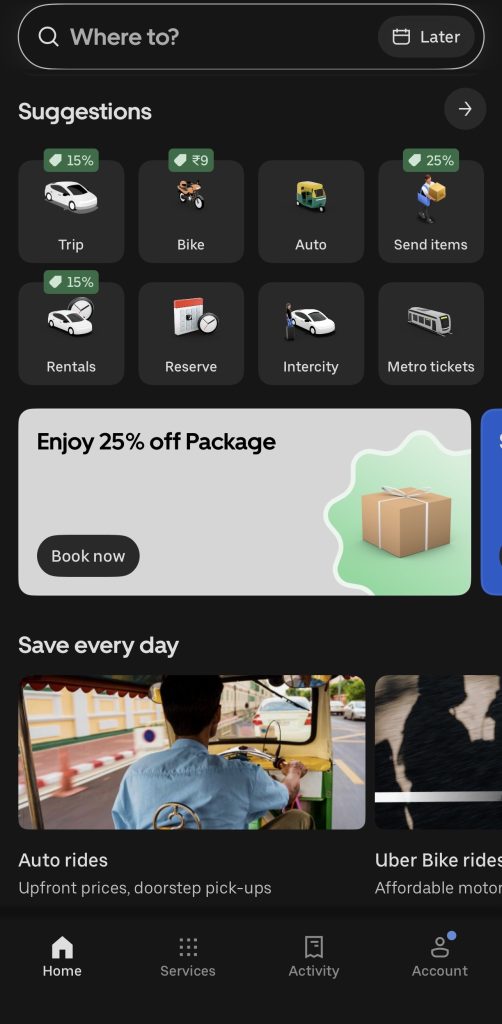
These core icons greet you right on Uber’s home screen, making navigation a breeze. Let’s break them down before diving into ride-time symbols you’ll spot next.
- 🔍 Q (Search) Icon: Tap the search bar to type your destination—address, business name, or landmark—for instant ride requests.
- 📅 Calendar Icon: Schedule rides ahead by selecting date and time. Perfect for airport runs or meetings when you need precise pickup timing.
- ⏰ Clock Icon: Quick-access to saved spots like “Home,” “Work,” or favorites. Saves retyping common destinations every time.
- 🚗 Car (Ride Options) Icons:
- Ride: Standard Uber car service for everyday trips.
- 🛺 Uber Auto: Book an auto-rickshaw for quick urban hops.
- 🏍️ Moto: Zip through traffic on a motorcycle taxi.
- 📦 Courier: Ship packages easily via Uber’s delivery network.
- 🏠 Home Icon: One-tap return to the main dashboard from any tab.
- ⚙️ Services Icon: Explore all Uber offerings—rides, Uber Eats, packages—tailored to your location.
- 📊 Activity Icon: View ride history, past orders, and trip details.
- 👤 Account Icon: Manage profile, payments, support, and settings in one spot.
2. Uber Services Screen Icons: The Quick Rundown
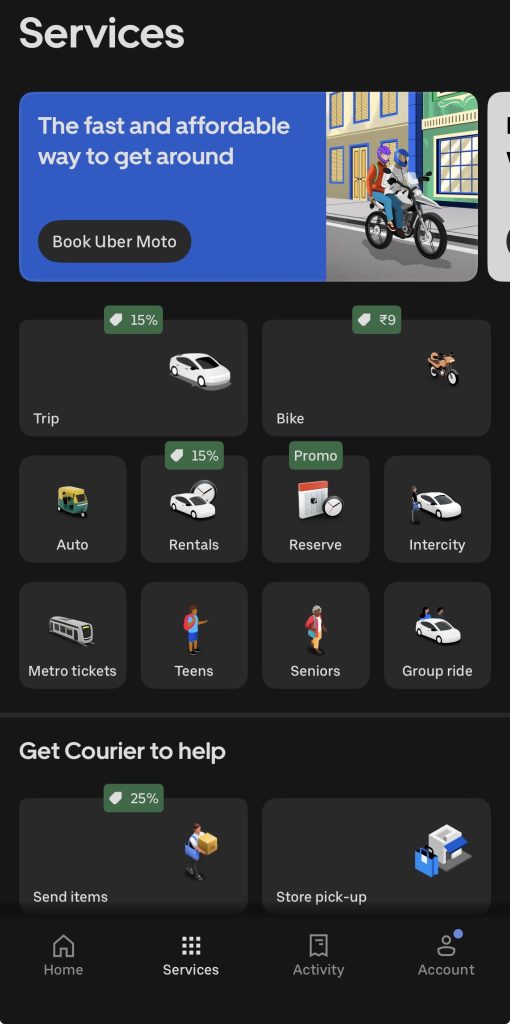
Hit that Services tab at Uber’s bottom nav? Boom—you unlock way more than basic rides. Here’s the casual breakdown of what each icon means, with spot-on emojis:
- 🚗💼 Intercity (Car + Person) Icon: Long-haul city-to-city trips. Think premium rides for road trips, not quick hops.
- 🔑 Rentals Icon: Grab a self-drive car for days or weekends—no driver, just you cruising freely.
- 🚌 Shuttle (Bus) Icon: Cheap shared rides on set routes. Perfect for events or airport runs in busy spots.
- 🚍 Transit (Mini Bus) Icon: Public transport smarts—check bus/train times, mix with Uber rides, even buy tickets.
- 🚙👥 Group Ride (Car + 2 People) Icon: Invite buddies, split the fare. Group travel made simple and wallet-friendly.
- 📅 Reserve (Calendar) Icon: Lock in a ride for later—often guaranteed driver, better than basic scheduling.
- 📦 Courier Icon: (Yup, same as home screen) :Ship stuff easy through Uber’s network.
- 🛍️ Store Pickup Icon: Order store goodies (not just food) for delivery straight to you. Retail games are strong!
3. Uber Activity Screen Symbols Meaning
The Uber app’s Activity tab provides a clear overview of your ride history and scheduled trips, with specific icons for navigation and details. Your description aligns closely with the standard interface, including realistic emoji representations for key elements.
Vehicle (Van) Icon 🚐
This icon marks the section for scheduled or reserved rides, showing upcoming trips when available. With no trips listed (“You have no upcoming trips”), it remains empty but ready for future bookings. It helps users track reservations at a glance.
Filter Icon (Two Lines with Dot) ⋮⋮
Often resembling sliders or two horizontal lines with a dot (like ≡ or ⋮⋮), this icon opens filters for past trips by date range, type, or payment. Tap it to sort and customize your view efficiently. Realistic emoji: ⚙️ or ≡.
Common Trip Icons
Upcoming trips display these elements with realistic emojis:
- Car type 🚗 (standard), 🚙 (SUV), 🏍️ (Moto).
- Date/time 📅🕒 for pickup schedules.
- Location pins 📍 (pickup), 🗺️ (drop-off route).
Practical Uses
Use this tab for expense tracking via receipts, disputing fares 💰, or reviewing details for reimbursements. Filter past rides to export data for taxes or reports. It’s essential for frequent riders in areas like Tamil Nadu
4. Uber Account Activity Tab: Icon Guide
- Profile Picture 👤:Displayed at the top Tap to edit personal details like name, photo, or phone number.
- Star Rating ⭐:Shows your average rider rating from drivers across trips. Helps track service feedback.
- Help Icon 🆘 (Life Ring):Access support resources, FAQs, chat with customer service, or report ride issues.
- Wallet Icon 💳 (Card with Dot):Manages payment methods (cards, UPI), Uber Cash balance, and transaction history.
- Activity Icon 📝 (Note):Links to trip history, upcoming rides, and account activity—as covered earlier with filter (≡) and van (🚐) icons for sorting and schedules.
5. Uber Ride Booking Screen Symbols Meaning
This is the screen where you are prepared to book your trip, and you can enter your pickup and drop-off locations, select your preferred mode of transport, and enter additional information to your trip summary. Here is an overview of the commonly used icons and elements on your screen:
- Uber Ride Request Screen: Icon Guide
The Uber ride request screen features essential icons for customizing and confirming your trip. Here’s a clear breakdown with realistic emojis for easy reference.
- Back Arrow ⬅️:Located top-left, tap back to the home screen where you started the ride request.
- Pickup (Drop-Down) ▼:Open schedule options: “Now” (immediate) or “Later” (scheduled ride).
- For Me (Drop-Down) 👤▼:Switch ride type—book for yourself, another contact, or create a group ride.
- Plus (Add Stop) ➕:Adds extra destinations; tap to include multiple pickups/drop-offs along the route.
6. Uber Ride Confirmation Screen:
This screen appears once you have entered your pickup location, your drop-off location, and have selected a type of ride. This screen is a confirmation of your requested information. So, let’s take a quick look at each of the icons on this screen.
- Pickup Location Pin (Grey Circle with Black Dot Icon): This icon marks your chosen pickup location on the map. Its round shape distinguishes it from the destination marker.
- Drop-off Location Pin (Grey Square with Black Dot Icon): This icon marks your chosen destination on the map. Its distinct shape (often a square or a flag) differentiates it from the pickup marker.
- Compass Icon (Recenter): This icon, usually located near the pickup point or your current location, allows you to re-center the map on your current location. Tapping it ensures that the map is oriented correctly with your current view.
- Green Coupon Icon: You might see a green icon near the estimated price indicating that a discount has been applied.
7. Uber Ride Options: Capacity Icons Guide
People Icon with a number: These are the little icons you will always see along each option beside the kind of ride when you are trying to choose rides on the Uber App. This shows the different levels of available passenger capacity of that particular vehicle type. These help you select an appropriate ride for the amount of people that will be traveling with you.
Note: While this number serves as a great guideline, these are recommended capacities. Luggage and other factors might make a car feel more crowded even if you are within the stated passenger limit.
8. Uber Trip History: Fare Icon Guide
When viewing your trip history or earnings as an Uber driver, the blue lightning bolt or “zap” icon next to a fare amount signifies Surge Pricing or Boost earnings. It indicates that the fare for that particular trip was affected by dynamic pricing due to high demand (surge) or that the trip qualified for a Boost promotion.
- Surge Pricing: During periods of high demand, Uber’s surge pricing kicks in, increasing fares to incentivize more drivers to get on the road. The lightning bolt icon indicates that the fare you earned for that trip included a surge multiplier.
- Boost Earnings: Uber sometimes offers Boost promotions in specific areas or during certain times. Boosts can multiply your earnings on eligible trips. The lightning bolt icon can also indicate that a trip was boosted.
- Payment Timing (Boost): Boost earnings are often handled differently than regular fares. They are typically paid out weekly rather than being available for immediate cash-out. The lightning bolt serves as a visual cue to distinguish these earnings.
- Regular Fare vs. Surge/Boost: The absence of the icon usually indicates that the fare was a standard fare, without any surge or boost applied.
10. Meaning of White vs. Red Passenger Icons in Uber Shared Rides
In Uber’s shared ride options, the passenger icon with a number next to it indicates the number of riders currently in the vehicle or expected to be picked up.
- White Passenger Icon: A white passenger icon indicates that the riders shown are already in the car. These are passengers who have been picked up and are currently sharing the ride.
- Red Passenger Icon: A red passenger icon means that the rider (or riders) indicated are yet to be picked up. They are part of the shared ride but are still waiting to be collected.
For Example: If you see a white passenger icon displaying “2” and a red icon displaying “1,” this means that there are already two passengers in the vehicle and one more passenger expects to board.
Understanding the white or red colored passenger icon allows you to gain a deeper insight regarding the developments within the process of a shared ride, in association with what additional pickups to anticipate along the way.
Conclusion
Mastering Uber icons & symbols explained easily transforms your everyday app experience from confusing taps to confident navigation. You’ve now got the full breakdown—from home screen cars and lightning surge alerts to safety shields and driver-specific earnings icons—covering riders, deliveries, and the fresh 2026 redesign quirks.
Think about it: no more pausing mid-ride to guess what a red passenger dot or dotted route line means. Whether you’re a daily commuter dodging surge pricing, a driver chasing blue perks and boost hours, or just ordering Uber Eats without bag icon mix-ups, this knowledge saves time, cuts stress, and boosts ratings.
Ready to put it into action? Update your Uber app right now for the crispest icons, take a quick test ride to spot them live, and screenshot any new symbols that pop up—common after updates. Share these Uber icons & symbols explained easily, guide with friends who fumble during rush hour, or pin it as your go-to reference.
And if you found this article helpful, share it with your friends.“The roots of education are bitter, but the fruit is sweet.”for more educational news subscribe newssy.in–India Post GDS Recruitment 2026: Notification on Jan 31, 28,740 Vacancies – Apply Online Link & Last Date.







No Comment! Be the first one.