




Understanding Google Drive Icons and Symbols to Use It More Confidently
Introduction: Many people use Google Drive every day without ever fully understanding the small icons and symbols they see. These coloured file icons, tiny arrows, stars, and cloud signs quietly...

Introduction: Many people use Google Drive every day without ever fully understanding the small icons and symbols they see. These coloured file icons, tiny arrows, stars, and cloud signs quietly decide how your files are stored, shared, and synced across web, mobile, and desktop. If you have ever caught yourself wondering, “What does this Google Drive icon mean?”, you are definitely not the only one.
Table Of Content
- What Are Google Drive Icons and Symbols?
- Common Icon Categories in Google Drive
- Google Drive Main Screen Icons Explained
- Navigation Icons (Sidebar)
- File and Folder Type Icons
- Google File Icons
- Other File Icons
- Folder Icons
- Sharing and Collaboration Icons
- Sync, Offline, and Status Icons (Drive for Desktop + Mobile)
- Action Icons and Toolbar Symbols
- Special Icons: Shortcuts, Starred, Priority, and Add-ons
- Tips to Identify Google Drive Icons
- FAQ Section (Questions with Answers)
- Conclusion: Navigate Google Drive Like a Pro
Understanding Google Drive Icons and Symbols can greatly enhance your productivity and ease of use with the platform.
This guide is for:
- New Google Drive users who feel lost in the interface
- Students, creators, and office users managing lots of files
- Anyone confused by shared folders, shortcuts, or sync icons
- People using Google Drive on web, mobile, and Drive for desktop
What Are Google Drive Icons and Symbols?
Google Drive uses different icons and small overlay symbols to show file types, actions, sharing status, and whether a file is synced or only online. Learning what these symbols mean helps you avoid mistakes like deleting the wrong file, accidentally sharing something private, or thinking a cloud‑only file is actually saved on your device.
Common Icon Categories in Google Drive
- Navigation icons: Found in the left sidebar (My Drive, Shared with me, Starred, Trash, etc.).
- File type icons: Show whether a file is a Google Doc, Sheet, Slide, PDF, image, video, or other format.
- Sharing icons: Indicate shared files and folders, link‑sharing, and collaboration level.
- Sync and status icons: Show online‑only, synced, offline, or error states, especially in Drive for desktop.
- Action icons: Used for preview, download, move, delete, share, and more.
Each of these Google Drive Icons and Symbols plays a crucial role in file management.
Google Drive Main Screen Icons Explained
Navigation Icons (Sidebar)
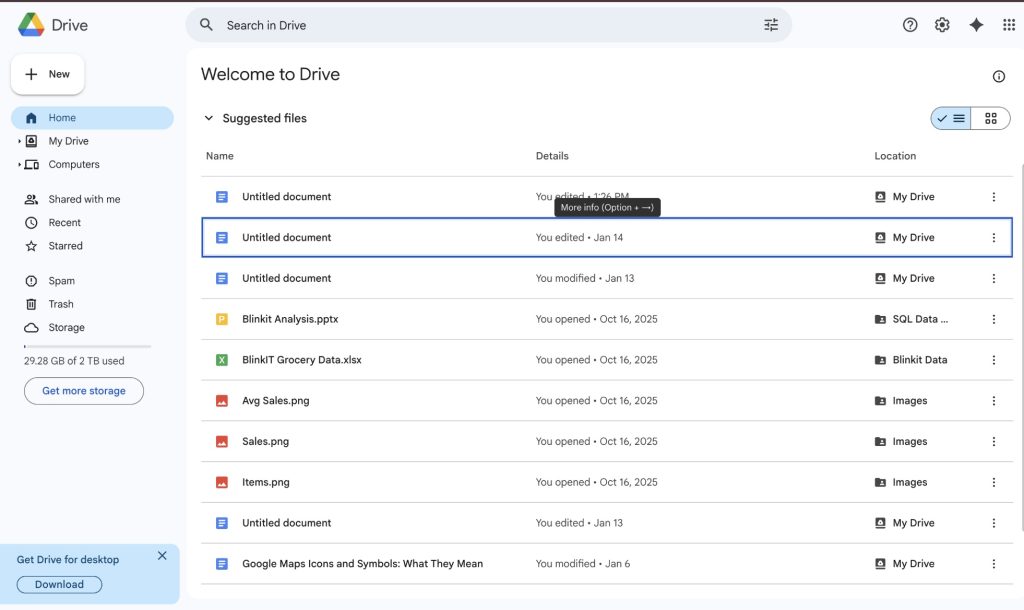
- My Drive 🗂️: Folder icon that shows your main storage area.
- Shared with me 👥: People/person icon for files and folders others have shared with you.
- Starred ⭐: Star icon for favourite or important items you want quick access to.
- Trash 🗑️: Bin icon where deleted files go before they are permanently removed.
Utilizing Google Drive Icons and Symbols appropriately will help streamline your workflow.
File and Folder Type Icons
Google File Icons
- Google Docs (💙): Word‑style documents; blue paper icon with lines.
- Google Sheets (💚): Spreadsheets; green grid icon.
- Google Slides (💛): Presentations; yellow slide thumbnail.
- Google Forms (💜): Forms and quizzes; purple form icon.
- Google Drawings: Visual projects; drawing‑style icon.
Other File Icons
- PDF 📄: Red or document icon marked as PDF.
- Images 🖼️: Picture or mountain‑style icon.
- Videos 🎬: Play or film strip icon.
- Audio 🎧: Headphone or speaker icon (depending on device).
- ZIP/archives 🗂️: Generic file icon, often shown like a folder or stack.
Understanding the Google Drive Icons and Symbols displayed in the main screen is fundamental.
Folder Icons
- Normal folder 📁: Plain folder icon for your own collection.
- Shared folder 📁👥: Folder with a small person/people overlay indicating others can access it.
- Starred folder 📁⭐: Folder with a star overlay, also shown in the Starred section.
Sharing and Collaboration Icons
- Shared file/folder: Small person or people icon overlay shows that item is shared.
- Link‑sharing icon: Link or globe symbol in share settings indicates access via link.
- Viewer/Commenter/Editor labels: Text plus small icons show permission level.
- Comment/activity indicators: Comment bubble or activity icons in Docs/Sheets/Slides show ongoing collaboration.
These sharing icons protect your privacy and help you quickly see which items are private and which belong to teams or groups.
Sync, Offline, and Status Icons (Drive for Desktop + Mobile)
Read also :What Do Icons, Symbols, Emojis Mean on Snapchat
Familiarizing yourself with Google Drive Icons and Symbols can enhance your file management skills.
- Cloud icon: File is online‑only; it will download when opened.
- Checkmark/tick: File is fully synced and available offline on your device.
- Spinning arrows/sync symbol: File is currently syncing.
- Warning/error icon: Something went wrong with sync or storage; check Drive for desktop panel for details.
Using Google Drive Icons and Symbols effectively can save you a lot of time.
Another important category under Google Drive Icons and Symbols is the sharing icons.
Each icon among the Google Drive Icons and Symbols signifies a different file type.
On mobile or web, offline toggles/icons show when a file is stored locally and safe to open without the internet.
Action Icons and Toolbar Symbols
- Preview 🔍: Opens a quick view of the file.
- Download ⬇️: Saves a copy to your device.
- Move 📁➡️: Moves the file to another folder.
- Delete 🗑️: Sends the file to Trash, not permanently deleted immediately.
- Rename✏️: Changes the file or folder name.
- Select ✅: Selects multiple items at once.
Special Icons: Shortcuts, Starred, Priority, and Add-ons
- Shortcut icon🔁: This is not a copy but a shortcut pointing to the original file or folder.
- Star icon ⭐: Marks a file or folder as important; these appear in the Starred section.
- Priority/workspace icons 📌: Highlight key or suggested files in some accounts.
- Side panel icons 📅📝✅: Small app icons on the right side of Drive for quick access to add‑ons and Google Workspace tools.
Tips to Identify Google Drive Icons
- Hover your pointer over the icons on the web—tooltips display the operation name or status.
- Right-clicking a file and comparing icons on the toolbar with words on the menu to “learn” the symbol.
- On mobile, click on the three dot menu and observe which icons are displayed for share, link, offline, and star.
- It’s important that you refer to the Official Google Drive Help Center when you notice a new icon because of updates.
- Note that icon designs can slightly differ when implemented for web, Android, iOS, and desktop platforms, but in all versions, the icon represents a similar concept.
FAQ Section (Questions with Answers)
1. What do the different Google Drive icons and symbols mean?
They show file type, sharing status, and sync or offline state so you can quickly understand how each file behaves without opening it.
2. How do I know if a Google Drive file or folder is shared?
Look for a small person/people icon overlay, or open the Share dialog to see if others are listed or if link sharing is enabled.
3. What is the difference between a shortcut icon and a normal file?
A shortcut has a curved arrow overlay and only points to the original item, so it uses almost no extra storage compared to a full file copy.
The sharing features utilize various Google Drive Icons and Symbols to indicate permissions.
Familiarity with Google Drive Icons and Symbols ensures a smoother workflow.
4. How can I tell if a Google Drive file is available offline?
In Drive for desktop, a checkmark icon usually means the file is offline, while a cloud icon is online‑only; in apps, look for “Available offline” toggles or offline badges.
5. What do the checkmark and cloud icons in Drive for desktop mean?
The checkmark shows the file is synced and stored locally; the cloud means it lives in the cloud and will download on demand.
The Google Drive Icons and Symbols for syncing are vital for understanding file availability.
6. How do I use the star icon in Google Drive?
Click or tap the star next to important files and folders to add them to the Starred section, which works like a favourites list for quick access.
Being aware of the various Google Drive Icons and Symbols can improve your file management practices.
7. Why do my Google Drive icons sometimes change after an update?
Google refreshes designs and adds new features, so icons can be redesigned while keeping their core meaning similar.
8. Are Google Drive icons the same on web, mobile, and desktop?
They are very similar but not always identical; sync and offline icons especially may look different between Drive for desktop and the web or mobile app.
9. How can a beginner quickly learn Google Drive icons?
Spend a few minutes matching icons in your own Drive with this guide, use hover tooltips, and test actions on non‑important files to build confidence.
10. Where can I see official references for Google Drive icons?
The Google Drive Help Center and product documentation often show updated screenshots and explanations of new status and sync icons.
Conclusion: Navigate Google Drive Like a Pro
A visual representation of this overwhelming nature of Google Drive is when you first log into your account and are bombarded with a variety of colours, overlays, and miniature icons, which all appear to convey a distinct message. Once you realize what each icon and symbol represents, this functionality becomes quite predictable.So, what do you think? Let me know in the comments. And if you found this article helpful, share it with your friends. Investing is always better when you learn together. for more educationalnews subscribe newssy.in
Exploring the Google Drive Icons and Symbols on the toolbar enhances your interaction with the software.
Each file type has specific Google Drive Icons and Symbols associated with it.
Recognizing the different Google Drive Icons and Symbols can mitigate errors in file handling.
Learning about Google Drive Icons and Symbols is essential for effective collaboration.
Realizing the significance of Google Drive Icons and Symbols will aid in effective navigation.
With this guide, you can easily decode Google Drive Icons and Symbols and optimize your usage.







No Comment! Be the first one.