




Spotify Icons Explained: Unlock the Meaning Behind Every Symbol
Introduction: Spotify is packed with tiny icons and symbols—but most users only know a few. From shuffle and Smart Shuffle to hearts, plus buttons, download arrows, and device icons, these symbols...


Introduction:
Table Of Content
- What Are Spotify Symbols and Icons?
- Spotify Main Screen Icons Explained
- 🎧 Home Screen Icons (Bottom Bar)
- 🔝 Top Bar Icons
- ▶️ Now Playing & Playback Icons
- Core Controls
- 🔀 Shuffle & Repeat Icons
- 🔊 Queue, Volume & Devices
- ❤️ Interaction Icons (Tracks & Playlists)
- 🏷️ Track & Playlist Indicators
- 📥 Download & Offline Icons
- 👥 Profile & Social Icons
- New and Updated Spotify Symbols in 2025
- Tips to Quickly Identify Spotify Icons
- FAQ Section
- Conclusion: Navigate Spotify Like a Pro
Spotify is packed with tiny icons and symbols—but most users only know a few. From shuffle and Smart Shuffle to hearts, plus buttons, download arrows, and device icons, these symbols control how you listen, save, and manage your music every day.
If you’ve ever wondered, “What does this Spotify icon mean?”, you’re not alone.
This guide is for:
- New Spotify users
- Listeners switching from other music apps
- Creators, playlist curators, and power users
- Anyone confused after a new Spotify update.
What Are Spotify Symbols and Icons?
Spotify uses icons to represent actions, features, or statuses in a compact way so the interface stays clean and works across different languages and screen sizes. Understanding what each symbol means helps you:
- Avoid mistakes (like turning on Smart Shuffle when you just wanted normal shuffle)
- Manage your queue, downloads, and library more confidently
Most icons are simple shapes—arrows, hearts, plus signs, circles—but their colors and states (on/off, filled/outlined) change what they mean.
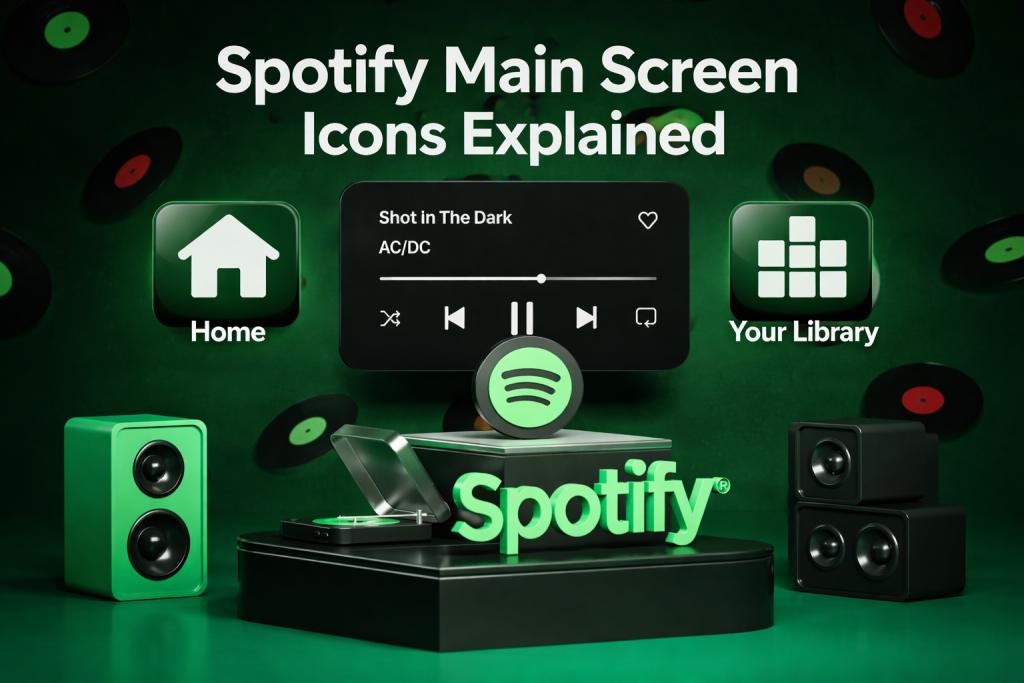
Spotify Main Screen Icons Explained
Read also:How to Earn Money Online Without Investment (Real Methods That Actually Work)
🎧 Home Screen Icons (Bottom Bar)
- 🏠 Home:Personalized feed: mixes, recommendations, recently played
- 🔍 Search:Find songs, artists, albums, playlists, podcasts, audiobooks
- 📚 Your Library:Saved playlists, liked songs, albums, artists, podcasts
- ⭐ Premium / Feed (region-specific):Spotify Premium offers or activity feed (varies by country)
🔝 Top Bar Icons
- 👤 Profile:Account, profile, followers, listening activity
- ⚙️ Settings:Audio quality, downloads, explicit content, notifications
- 🔔 What’s New:New releases and updates from followed artists & shows
- ⚡ Updates / Feed (experimental):Fast artist updates or discovery feed (limited regions)
▶️ Now Playing & Playback Icons
Core Controls
- ▶️ Play – Start or resume playback
- ⏸️ Pause – Temporarily stop playback
- ⏭️ Next – Skip to next track
- ⏮️ Previous – Go back to previous track
- 📍 Progress Bar – Scrub through the song or episode
🔀 Shuffle & Repeat Icons
- 🔀 Shuffle
- Play tracks in random order
- ✨ Smart Shuffle
Shuffle + recommended songs added automatically - 🔁 Repeat All
Repeat playlist or album - 🔂 Repeat One
Repeat the current track
🔊 Queue, Volume & Devices
- 📃 Queue
View and manage upcoming tracks - 🔊 Volume
Adjust sound level - 🔇 Muted
Audio turned off - 📱🔊 Device / Spotify Connect
Switch playback to speaker, TV, laptop, etc.
❤️ Interaction Icons (Tracks & Playlists)
- ❤️ Liked
Save song to Liked Songs - ➕ Add
Add song to library or playlist - ✅ Saved
Already in your library - ⋯ More Options
Add to playlist, share, view artist, report - 📤 Share
Share via link, apps, or stories
🏷️ Track & Playlist Indicators
- 🅴 Explicit
Contains explicit lyrics - 🟢 Spotify Editorial
Official Spotify-curated playlist - 👥 Collaborative Playlist
Multiple users can add/edit tracks - 🎙️ Live / 🎧 Remix / 💿 EP / 🎵 Single
Release-type labels
📥 Download & Offline Icons
- ⬇️ Download
Save for offline listening (Premium) - 🟢 Downloaded
Fully available offline - 🔄 Syncing
Download in progress
👥 Profile & Social Icons
- ➕ Follow
Follow artist, podcast, or user - 👥 Group Session
Listen together in real time - ✏️ Edit Profile
Change name, photo, public info
New and Updated Spotify Symbols in 2025
Spotify regularly tweaks its interface, so 2025 brought a few notable visual changes:
- Smart Shuffle visual update:
Enhanced look compared to normal shuffle, making it clearer when recommendations are being added. - Refined plus / check flow:
More places now use the plus‑to‑check behavior, replacing some older heart icons for saving content. - UI refresh around Home and Library tabs:
Icons and labels were slightly redesigned for clarity and to match Spotify’s newer design language.
These changes can vary by region and device, so you might see them slightly differently on Android vs iOS or mobile vs desktop.
Tips to Quickly Identify Spotify Icons
- Tap and test when safe:
Try icons on a test playlist—especially shuffle, repeat, and Smart Shuffle—to see how your queue changes. - Watch for color changes:
Many icons change color (often green) when active, such as shuffle, repeat, or downloaded content. - Check the three‑dot menu:
When in doubt, open the three dots (⋮) for more options and context about what you can do. - Use Spotify Help Center:
The official help docs and support posts often show screenshots of new layouts and features.
FAQ Section
1. What does Smart Shuffle mean on Spotify?
Smart Shuffle is an enhanced shuffle mode where Spotify not only shuffles your playlist but also inserts recommended songs into your queue; its icon looks like a more prominent shuffle symbol.
2. What does the repeat icon with a “1” mean?
When you see a loop icon with a small “1,” Spotify will keep repeating the current track instead of the entire playlist or album.
3. What’s the difference between the heart icon and the plus icon?
The heart usually marks favorites or follows artists, while the plus icon is used to save tracks or add them to playlists; once saved, it may turn into a green check.
4. What does the download arrow mean in Spotify?
The downward arrow in a circle is the download icon; when active and filled, it means the playlist, album, or episode is downloaded for offline listening.
5. What does the Spotify device icon do?
The device icon shows all available Spotify Connect devices and lets you switch which device is playing your music.
6. What does the “E” symbol on songs mean?
The “E” label stands for Explicit, showing that the track contains strong language or content.
7. What does the Spotify logo on a playlist cover mean?
A small Spotify logo badge on a playlist means it is an official playlist curated by Spotify’s editorial team.
8. Why did my Spotify icons change after an update?
Spotify often updates its design; icons may change shape, color, or location, but they usually keep similar meanings or actions.
9. Where can I find a full, official list of Spotify icons?
There is no single public master list, but Spotify’s help pages, community posts, and updated icon guides from tech sites cover nearly all commonly used symbols.
Conclusion: Navigate Spotify Like a Pro
Spotify’s interface can feel like a wall of tiny arrows, circles, and badges at first, but once you’re familiar with what each icon and symbol represents, it’s much easier and more enjoyable to use the app. Each symbol does a particular function, from shuffling your queue and repeating a song to saving your songs and changing devices in seconds.“Think of the icons on Spotify as a visual language,” he explains. “The more fluent you are, the more control you have over what’s happening when you listen to music.” Bookmark this guide and get familiar with the new icons with each update, and share it with friends who are just as perplexed by Smart Shuffle and three-dot menus as you are.So, what do you think? Let me know in the comments. And if you found this article helpful, share it with your friends.“Music speaks when words fail. for more educationalnews subscribe newssy.in







No Comment! Be the first one.