



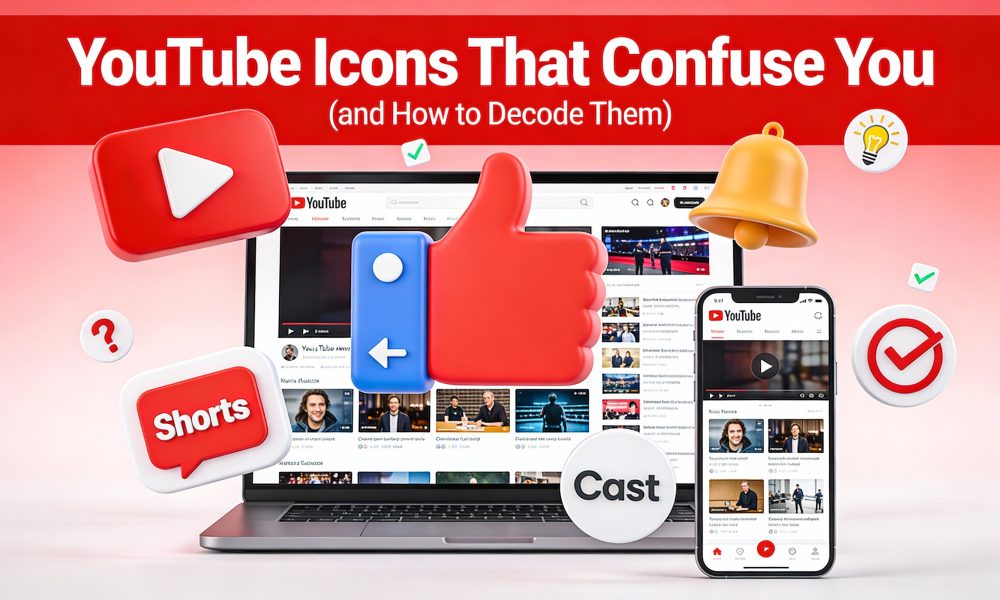
YouTube Icons That Confuse You (How to Decode?)
Introduction:It’s saturated with small symbols and iconography—but few people know what they all mean. The thumbs up, the bells, and the “cast” buttons to the many hidden icons found in Shorts, Live...

Introduction:
It’s saturated with small symbols and iconography—but few people know what they all mean. The thumbs up, the bells, and the “cast” buttons to the many hidden icons found in Shorts, Live Videos, Comments, and more all work in the background to control how you consume videos every day. “Have you ever looked at a YouTube icon and wondered what it means?” You’re definitely not alone.
This guide is for:
- New YouTube users
- Content creators and streamers
- Parents and casual viewers
- Anyone confused by YouTube’s latest design updates
What Are YouTube Symbols and Icons?
YouTube employs icons to denote actions, features, or status (such as “ “verified” symbols, or “ Shorts ”). Being conversant with these icons will enable you to avoid errors (such as accidentally reporting or blocking someone).
Common Icon Categories on YouTube
Read also :TikTok Icons and Symbols Explained: Full Guide
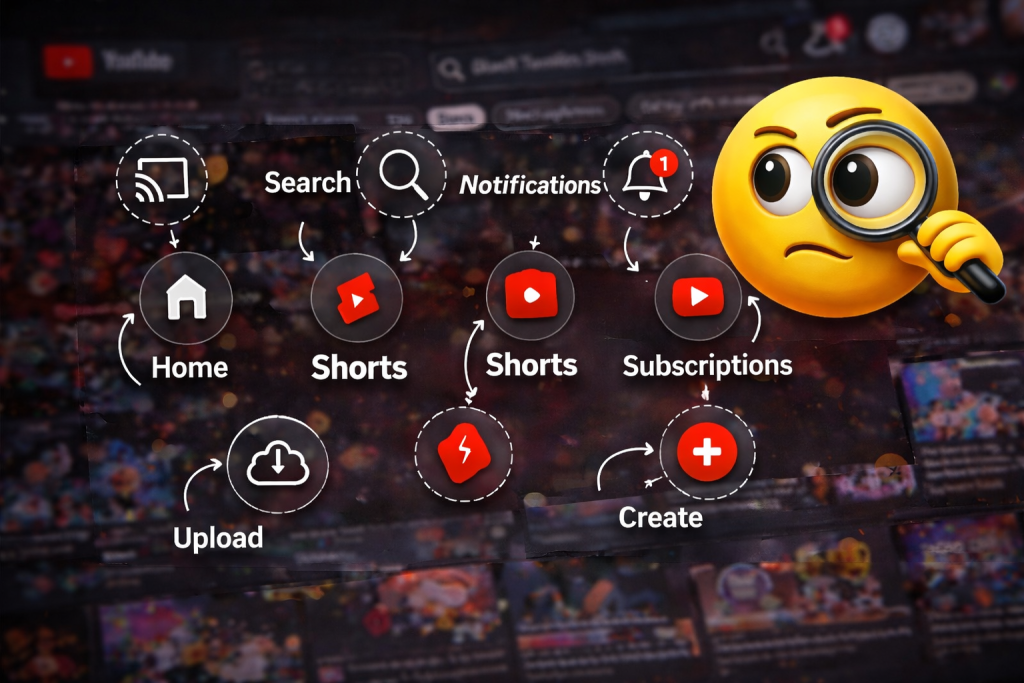
- Navigation icons: Found on Home, Shorts, Subscriptions, and Library.
- Player icons: Seen on the video screen (Play, Pause, CC, Settings, Fullscreen).
- Interaction icons: Found under videos (Like, Dislike, Share, Save, Download).
- Channel and status icons: Show verification, Live streams, and special badges.
YouTube Main Screen Icons Explained
Home Screen Icons (Bottom Bar – App)
- Home icon (🏠): Takes you to your main feed with recommended videos based on your viewing history.
- Shorts (▶️ in a play-shaped frame): Opens the vertical short-video feed you can swipe through.
- Create (+ symbol): Lets you upload a video, start a live stream, or record a Short.
- Subscriptions (▶️ with lines or stacked bars): Shows recent uploads from channels you’ve subscribed to.
- Library icon (📚 or folder): Opens your watch history, playlists, Watch later, and purchased content.
Top Bar Icons (App and Web)
- Search (🔍): Opens the search bar to find videos, channels, playlists, Shorts, and live streams.
- Cast icon (📺 with Wi‑Fi waves): Connects YouTube to your smart TV or casting device so you can watch on a bigger screen.
- Bell / Notifications (🔔): Shows alerts for new uploads, live streams, comments, replies, and mentions.
- Profile icon (👤 or your avatar): Opens your account menu, settings, channel, and switch-account options.
Post and Watch-Page Icons: What They Mean
Interaction Icons Under Each Video
- Like (👍): Likes a video. It turns solid when tapped or clicked and helps YouTube recommend similar content.
- Dislike (👎): Dislikes a video. It affects recommendations but doesn’t publicly show the total count.
- Comment bubble (💬): Opens the comments section so you can read and write comments.
- Share arrow (📤): Lets you copy the link or share the video to apps like WhatsApp, Instagram, email, or embed it.
- Save / Playlist (🔖 or lines with a plus): Adds the video to “Watch later” or a playlist so you can find it again.
Other Video Indicators
- Download icon (⬇️): Saves the video for offline viewing inside the YouTube app in supported regions or with Premium.
- Three dots (⋮): Opens extra options like Save, Download (if available), Not interested, Don’t recommend channel, or Report.
- LIVE badge (🔴 Live): Appears on thumbnails or next to the channel name to show a live stream is currently happening.
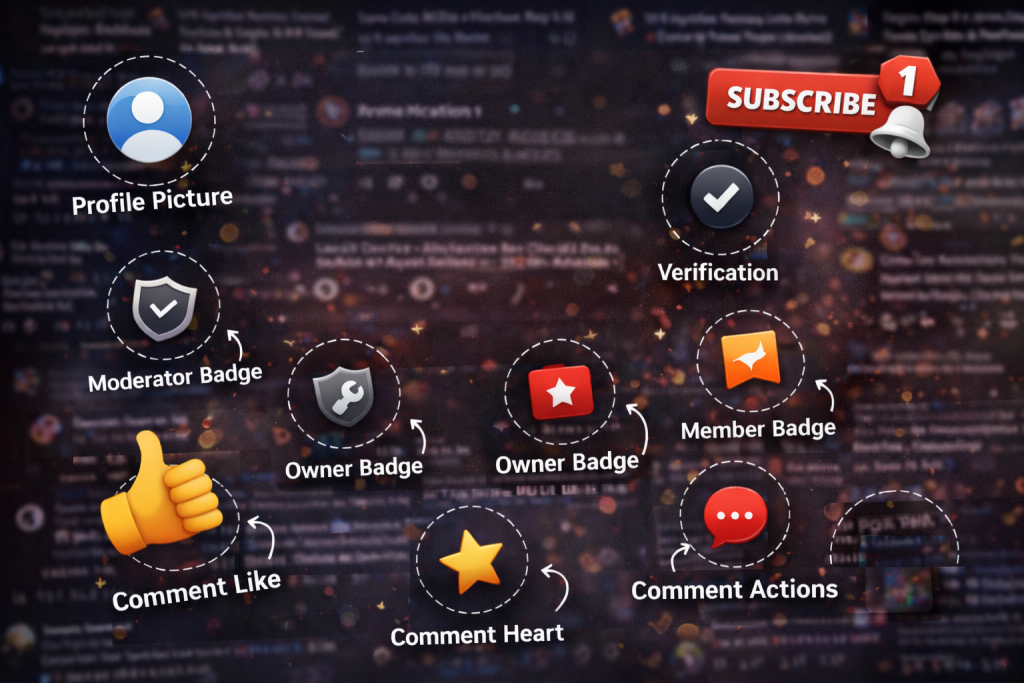
- Verified check (✔️): Indicates a verified channel—YouTube has confirmed it’s the real creator, brand, or artist.
Story/Shorts-Style Icons and Their Meanings
In the Shorts Feed
- Heart / Like (❤️ or 👍): Likes the Short and helps tune your Shorts recommendations.
- Comment bubble (💬): Opens comments for that Short.
- Share arrow (📤): Shares the Short via link or other apps.
- Sound / Audio icon (🎵): Opens a page showing the audio used in the Short and lets you reuse it in your own Short.
- Channel profile (👤): Opens the creator’s channel when tapped.
Story-Like UI in Live & Premieres
- Chat bubble: Opens live chat during a live stream or premiere.
- Dollar or gift icons (💬 with 💲 / 🎁): Show options like Super Chats or Super Stickers to support creators.
- Eye icon (👁️): Sometimes shows concurrent viewers or view count in specific layouts.
YouTube Video Player Icons Explained
On the Player Screen
- Play button (▶️): Starts the video. Turns into Pause when the video is playing.
- Pause (⏸️): Stops playback until you tap play again.
- Progress bar with red line: Shows how much of the video you’ve watched; you can drag the dot to skip.
- Volume / Speaker icon (🔊 / 🔇): Controls sound—tap to mute/unmute; drag the slider to change volume.
- CC icon (CC): Toggles subtitles/closed captions on or off.
- Settings gear (⚙️): Opens options like video quality, playback speed, subtitles, and more.
- Autoplay switch (▶️ with a small toggle): Controls whether the next suggested video plays automatically.
- Mini player icon: Shrinks the video into a small window while you keep browsing.
- Theater mode icon: Widen the player in the browser without full screen.
- Fullscreen icon (⛶): Expands the video to take up your entire screen.
Channel Symbols and Account Icons
On Channel Pages and Under Video Titles
- Channel avatar (👤): The profile picture representing the creator or brand; tapping it opens their channel.
- Verified check mark (✔️): Shows that YouTube has verified the channel as authentic and established.
- Official artist / music badge (🎵 with a check or special symbol): Marks official artist channels so you can spot real music accounts.
- Join / Membership button: Indicates that the channel offers paid memberships with extra perks.
Profile & Account Area (Top Right)
- Switch account icon: Lets you move between multiple Google/YouTube accounts.
- Settings / gear (⚙️): Opens account settings, privacy, notifications, and connected apps.
- Help & feedback icons: Give access to Help Center, feedback forms, and support resources.
Comments, Live Chat, and Community Icons
Read also:WBP Constable Result 2025 OUT: Direct PDF Download Link, Merit List & Cut Off
In Comments
- Heart icon on comments (❤️): A creator’s heart shows they liked or endorsed a comment.
- Pin label (“Pinned by…”): Shows that a comment is pinned to the top by the creator.
- Reply arrow (↩️): Lets you reply directly to a comment.
In Live Chat
- Super Chat / Super Sticker icons (💲 / 🎁): Show highlighted paid messages or stickers from viewers.
- Moderator wrench (🔧): Marks moderators who can remove messages or manage chat.
Community Tab
- Poll icons (📊): Show poll-style posts where you can vote on options.
- Image / gallery icons (🖼️): Indicate posts with images or collages.
- Like (👍): Lets you like community posts.
New and Updated YouTube Symbols in 2025:
YouTube regularly updates its interface. In 2025, these types of changes became more common:
- Refined player icons: Slightly thicker, pill-shaped buttons for play, captions, and settings to improve visibility.
- Tweaked logo red: A slightly brighter, modern red shade for the classic play button logo.
- More visible LIVE and premiere badges: Clearer labels and countdown timers on thumbnails and channel lists.
Tips to Quickly Identify YouTube Icons
- Hover or long-press icons: On desktop, hover your mouse to see tooltips; on mobile, some icons show labels when held briefly.
- Keep the app updated: Many icons change with redesigns, so updates explain new features in pop-ups.
- Check YouTube Help: The official Help section often shows screenshots and descriptions of new icons.
- Expect small differences: Icons can look slightly different on Android, iOS, smart TVs, and desktop
FAQ Section (Questions with Answers)
- What does the like button mean on YouTube?
The thumbs up icon means you “like” a video; it helps YouTube recommend similar content and supports the creator. - What does the bell icon mean on YouTube?
The bell controls notifications from a channel—you can get all, personalized, or no alerts for new videos and lives. - Why do some YouTube thumbnails have a red LIVE badge?
A red LIVE badge shows the channel is currently live streaming; clicking it takes you into the live video and chat. - What does the save or bookmark icon under YouTube videos mean?
It saves the video to “Watch later” or a playlist so you can easily find and watch it again later. - What does the blue or gray check mark next to a channel name mean?
It indicates the channel is verified, confirming that it’s the real brand, creator, or artist behind the content. - What does the cast icon on YouTube do?
The cast icon lets you send the video to a TV or streaming device on the same Wi‑Fi network and control playback from your phone or PC. - What does the “Clip” scissors icon mean on some videos?
It allows you to create and share a short clip (segment) of a longer video, if the creator has enabled clips. - What’s the meaning of the Shorts icon in the navigation bar?
It opens the YouTube Shorts feed, where you can watch and swipe through short, vertical videos. - Why do I sometimes see a download icon under videos?
The download icon appears when a video can be saved for offline viewing, usually in supported regions or with YouTube Premium. - Why do some YouTube icons look different after an update?
YouTube often refreshes its design; icons change shape, color, or position to match new features and improve usability.
Conclusion:
TheYouTube interface can be quite intimidating at first, filled as it is with small thumbnails, bells, arrows, and badges that seem to each have a different function. But once you familiarize yourself with the actual function of each of these symbols and icons, the interface becomes second nature to you. Each one of these icons is a shortcut, whether it’s helping you manage the recommendation algorithm, managing your viewing experience, supporting your favorite creators, or managing your channel. The icons on YouTube are like a language. The more you learn to speak this language, the more easily you can navigate the platform to consume and create content that you love.And if you found this article helpful, share it with your friends. Investing is always better when you learn together for more educational news subscribe newssy.in





No Comment! Be the first one.